Adding icons to your wireframes
Icons from the amazing Font Awesome icon set are pre-installed. It contains over 6308 icons in a wide range of categories that can be sized from extra small (XS) to double extra large (XXL).
Icons have their own panel in the left bar so you can drag and drop them just like any other UI element.
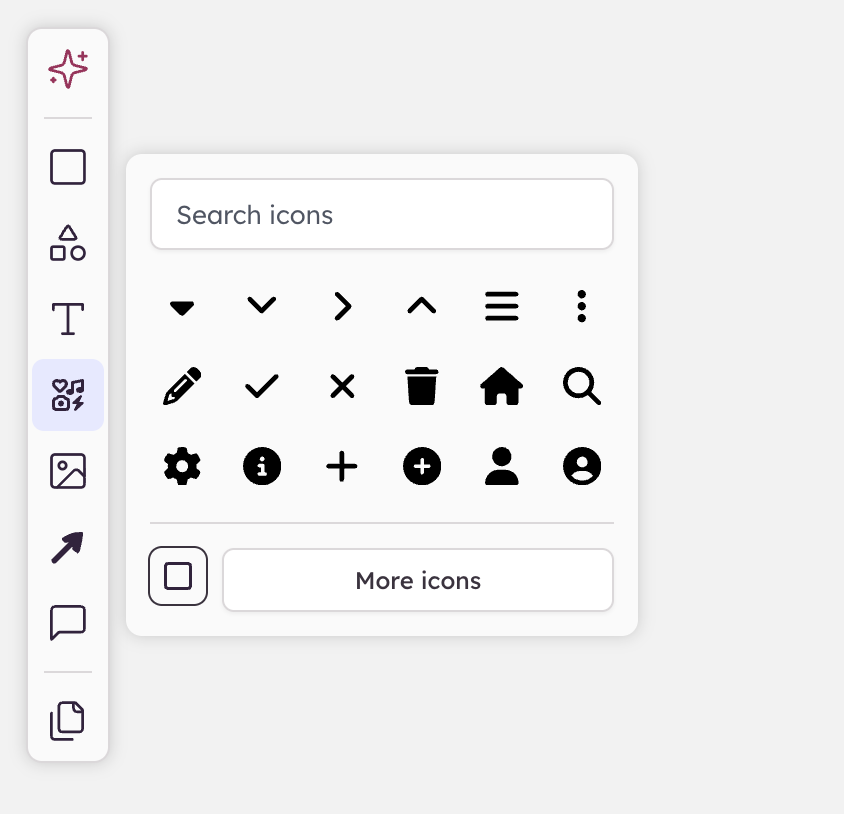
They also show up in the search results, saving you time when searching by name or keyword.
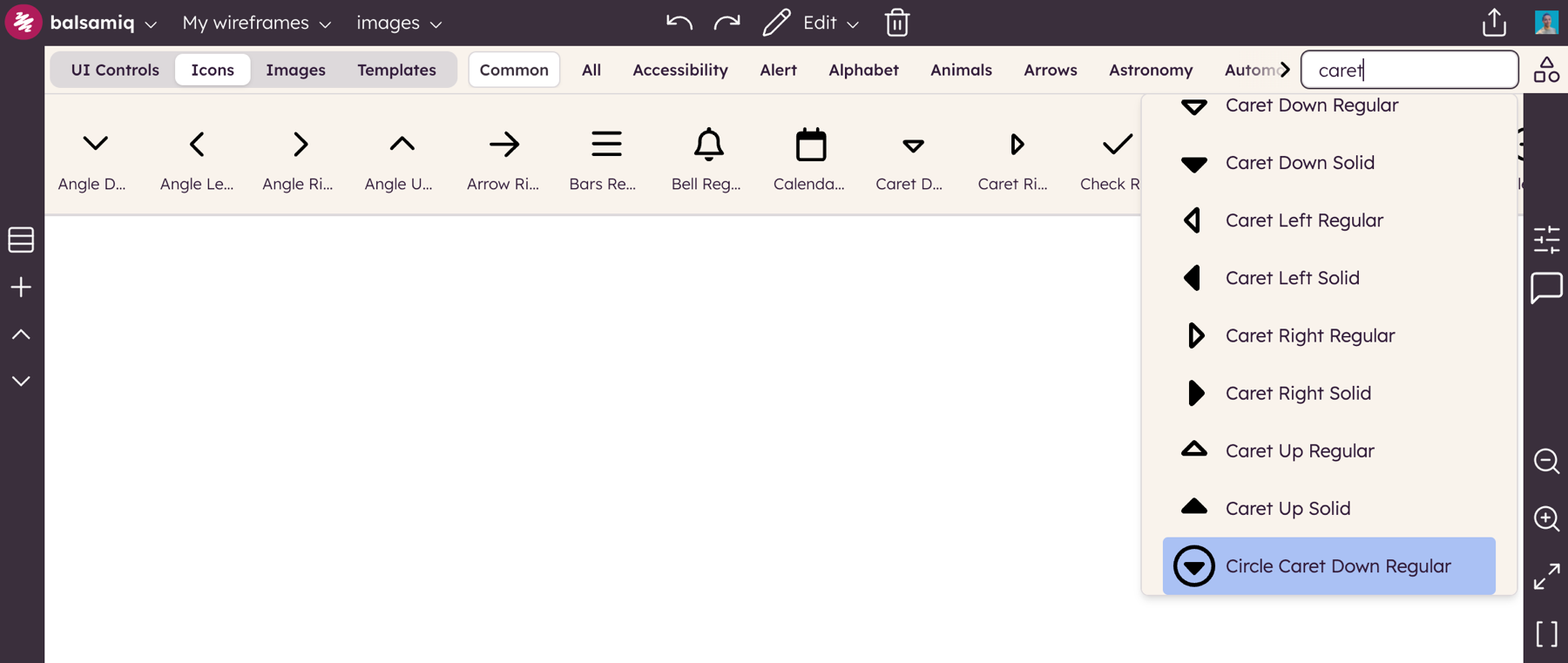
Icon search results are shown below any UI elements that match the text you enter.
Note: You can mix icons and text in any text-based UI element.
Adding and swapping icons via the selection toolbar
Some UI elements allow you to add icons to them (buttons, for example). You can do this from the selection toolbar using the icon picker.
Icon search
If the UI element you selected supports icons, you will see the icon search box in the selection toolbar. This works much like search — just type a few letters from the name of the icon you are looking for and a list of suggestions will pop up as a grid of icons to choose from. Just click on the one you want to select it.
You can also double-click an icon element directly on the canvas to open the icon picker.
You can then size the icon from "XS" (16px) to "XXL" (128px). You can also toggle between outline and solid styles, and rotate icons in 90 degree increments using the button next to the search box.
Once you have selected an icon, you can resize, rotate, or remove it via the selection toolbar.