Locking UI elements
Locking a UI element's position on the board can be useful for background elements that you want to stay in place. You can lock a UI element by selecting it and choosing "Lock (control name)" from the context menu, or from the Edit menu in the Toolbar.
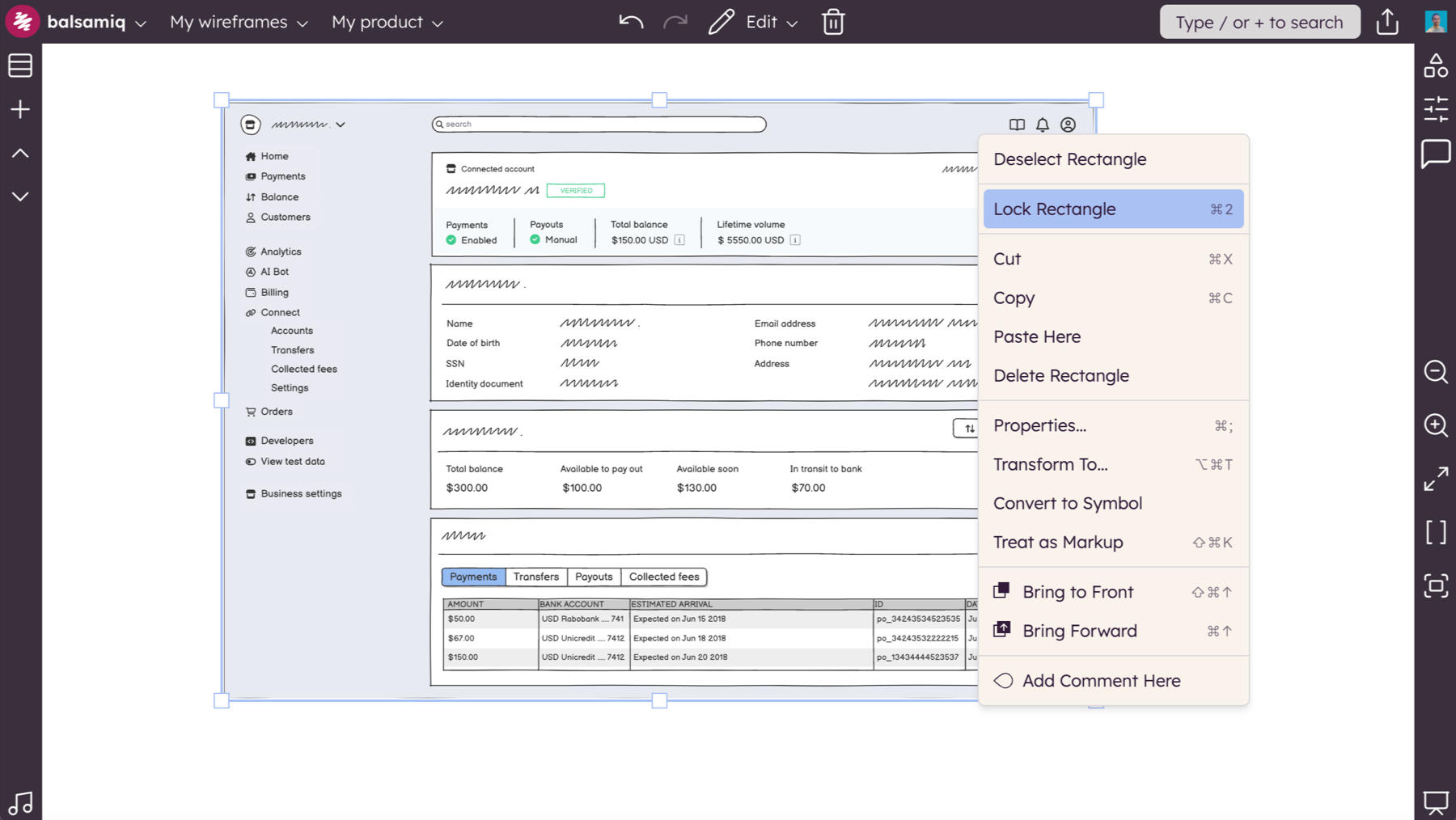
As a result, the UI element's position will be locked and you won't be able to select the UI element.
However, you can still select it by pressing SHIFT+CTRL/⌘ while clicking on it. This allows you to edit the UI element (by pressing ENTER or double-clicking) or change its properties from the selection toolbar. Position and size fields remain editable while an element is locked, and the unlock button appears in the size/position area of the toolbar.
To unlock a UI element, right-click on it or click the unlock button in the selection toolbar.