Exporting to PNG
You can export your boards to image files by selecting the Project menu > Share/Export > Download a file > Images option or use the keyboard shortcut CTRL/⌘+P, and then the Images tab from the dialog.
From there, you can generate standard PNG files or high resolution ones, depending on your needs.
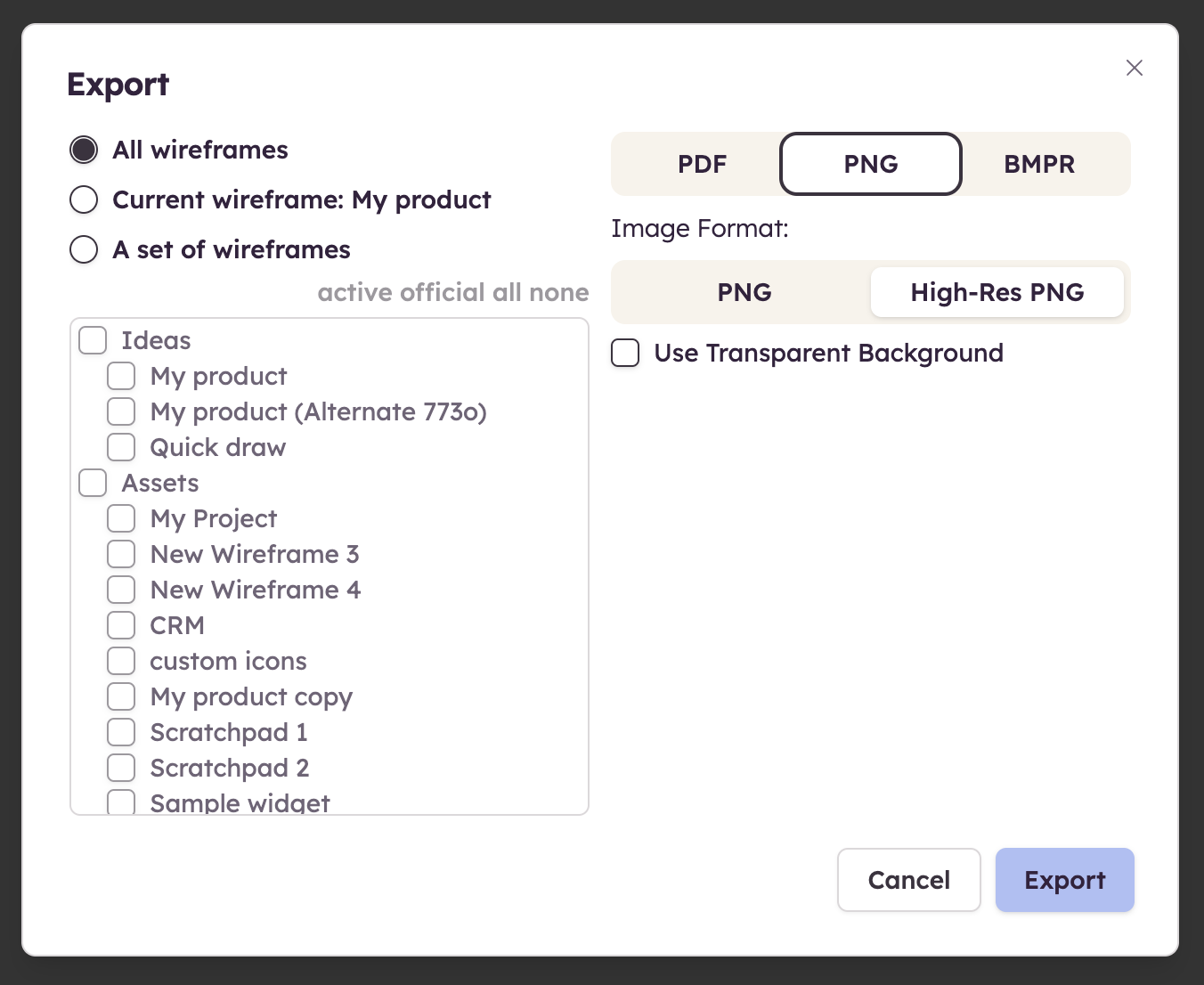
You can choose to export all boards, the current one or a specific set, including any alternates you have created.
Note: If you check the "Use Transparent Background" option, the exported image(s) will be transparent anywhere the board shows through in the board.
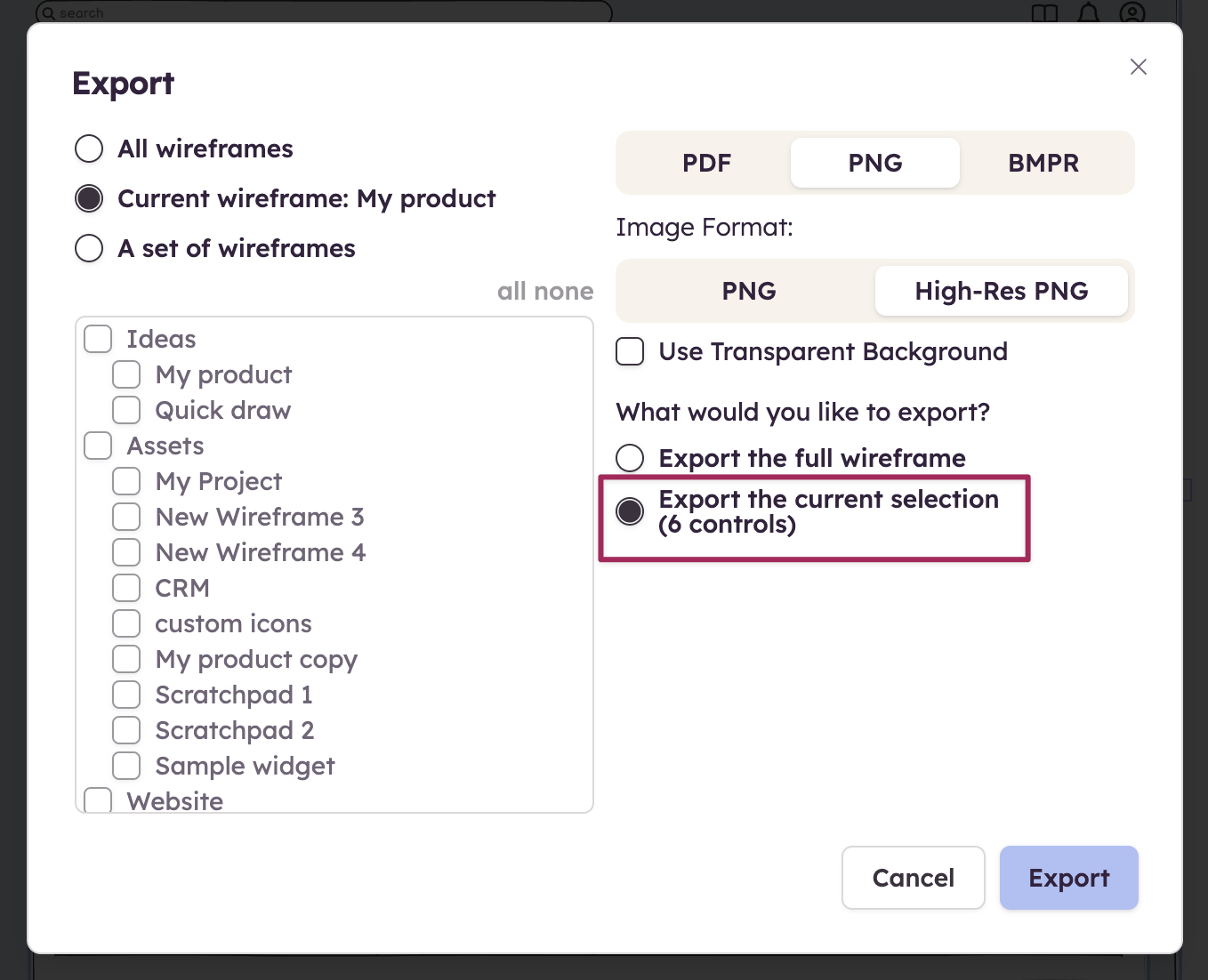
You can also export a subset of the UI elements in your board by selecting them on the board and using the "Export only this board" option. The export dialog will ask you if you want to export the entire board or only the selected UI elements.
Note: In Balsamiq for Desktop, you can also export your images as individual PNG files if needed.