The properties panel
On this page
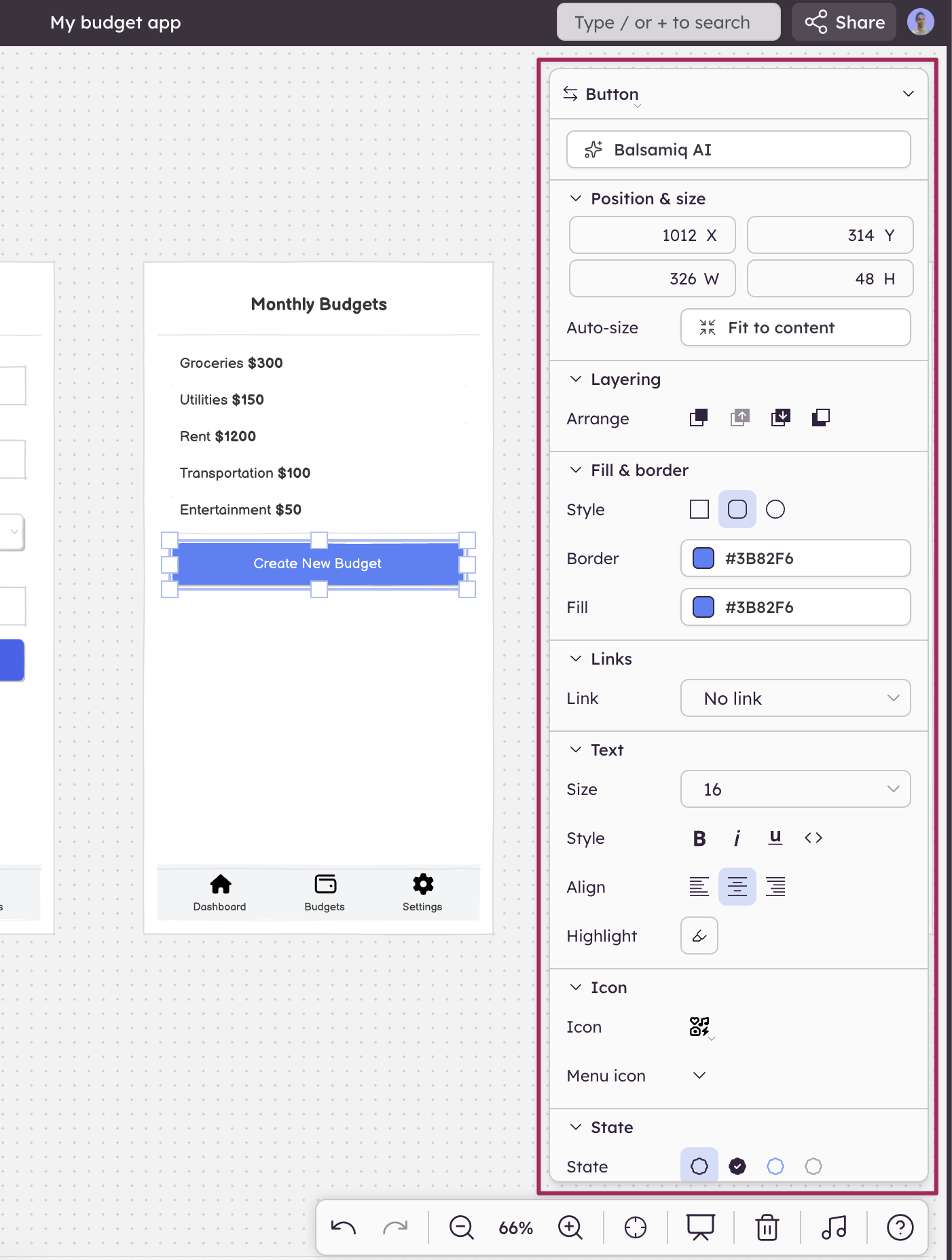
The properties panel on the right allows you to set properties for the selected UI element, such as alignment, text properties, color, etc.
You can turn it on from the View menu View > Panels > Show properties panel, and it will persist through sessions.
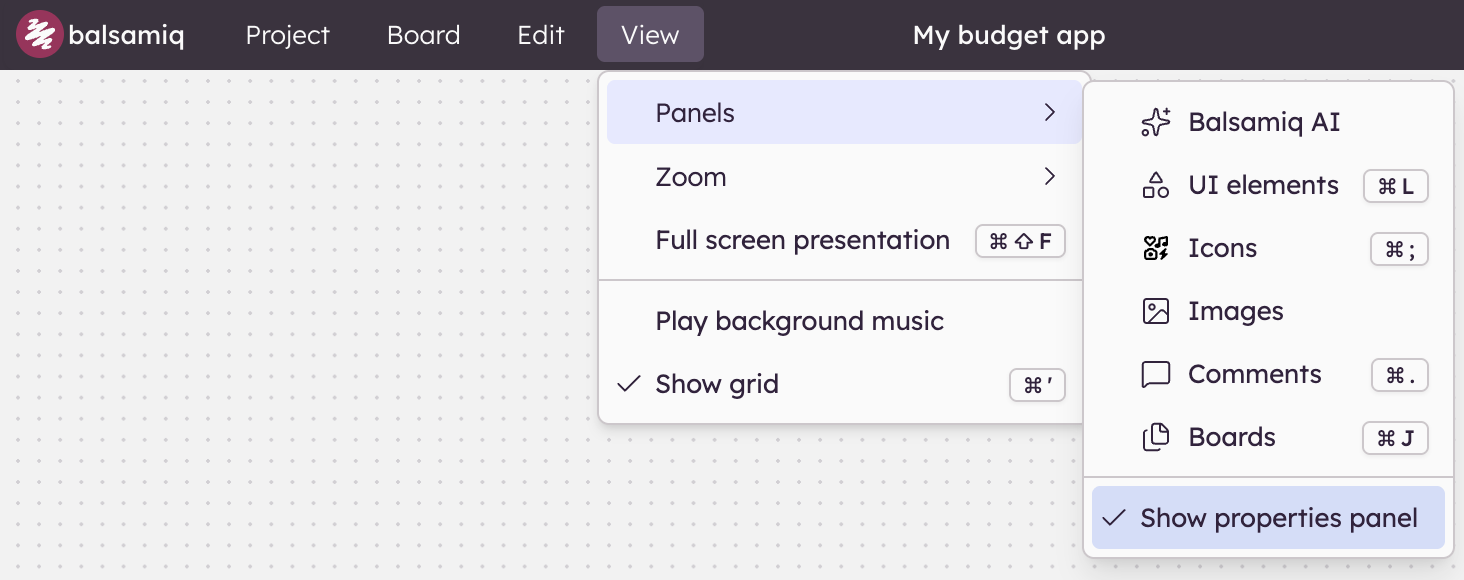
Note: Turning on the properties panel will replace the selection toolbar to edit your UI elements.
If you have multiple UI elements selected, it will display properties that are common to all the selected UI elements, as well as options for aligning and distributing the selection.
Multi-select behavior
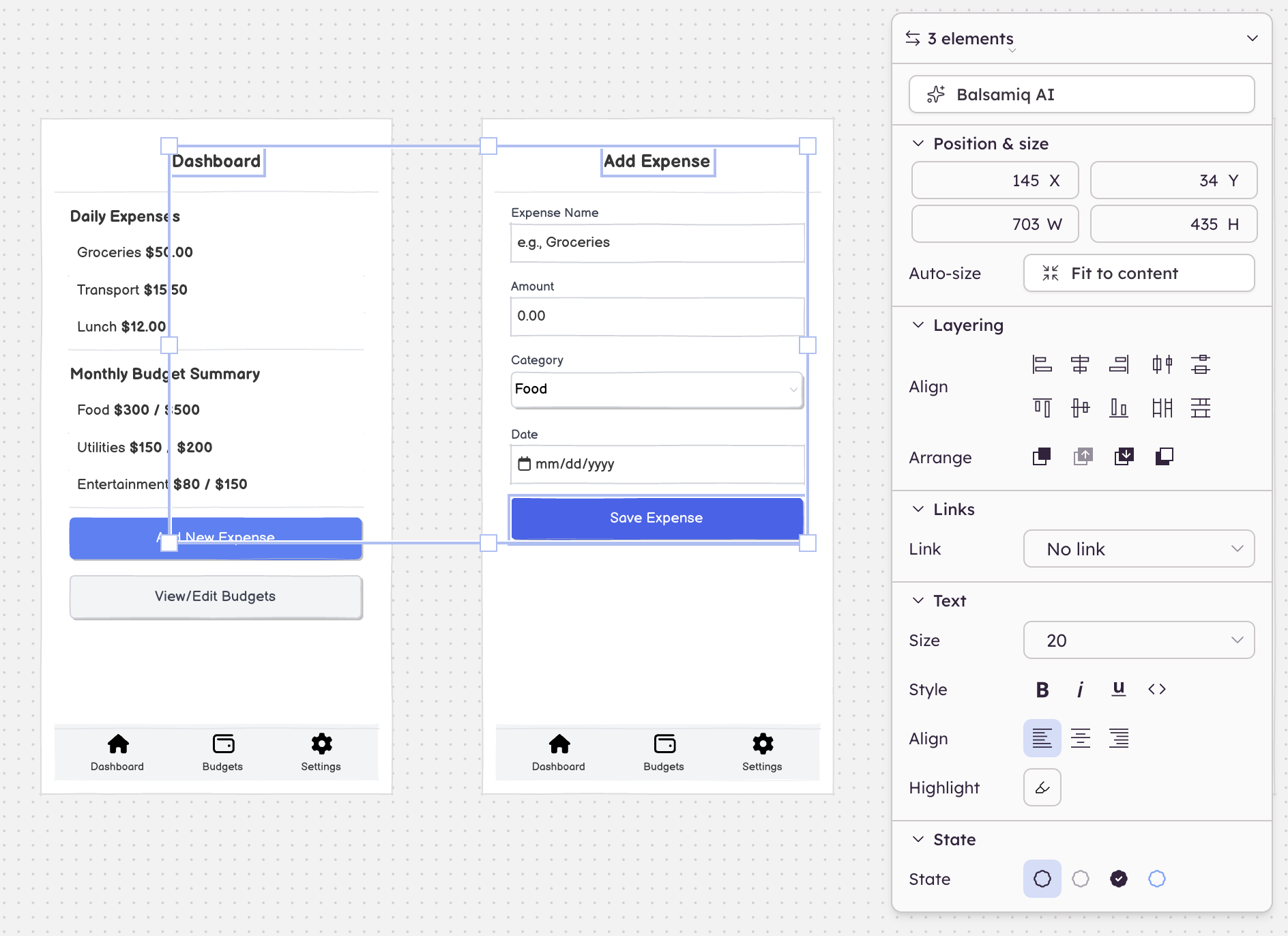
When two or more elements are selected:
- The properties panel shows only properties that exist on all selected elements
- Alignment controls appear (align left, center, right, and other axes) — these only show up for multi-select
- Changes apply to all selected elements at once
Creating components
To create a component from the properties panel, select multiple UI element, group them and then use the dedicated option in the top section of the panel, as shown below.
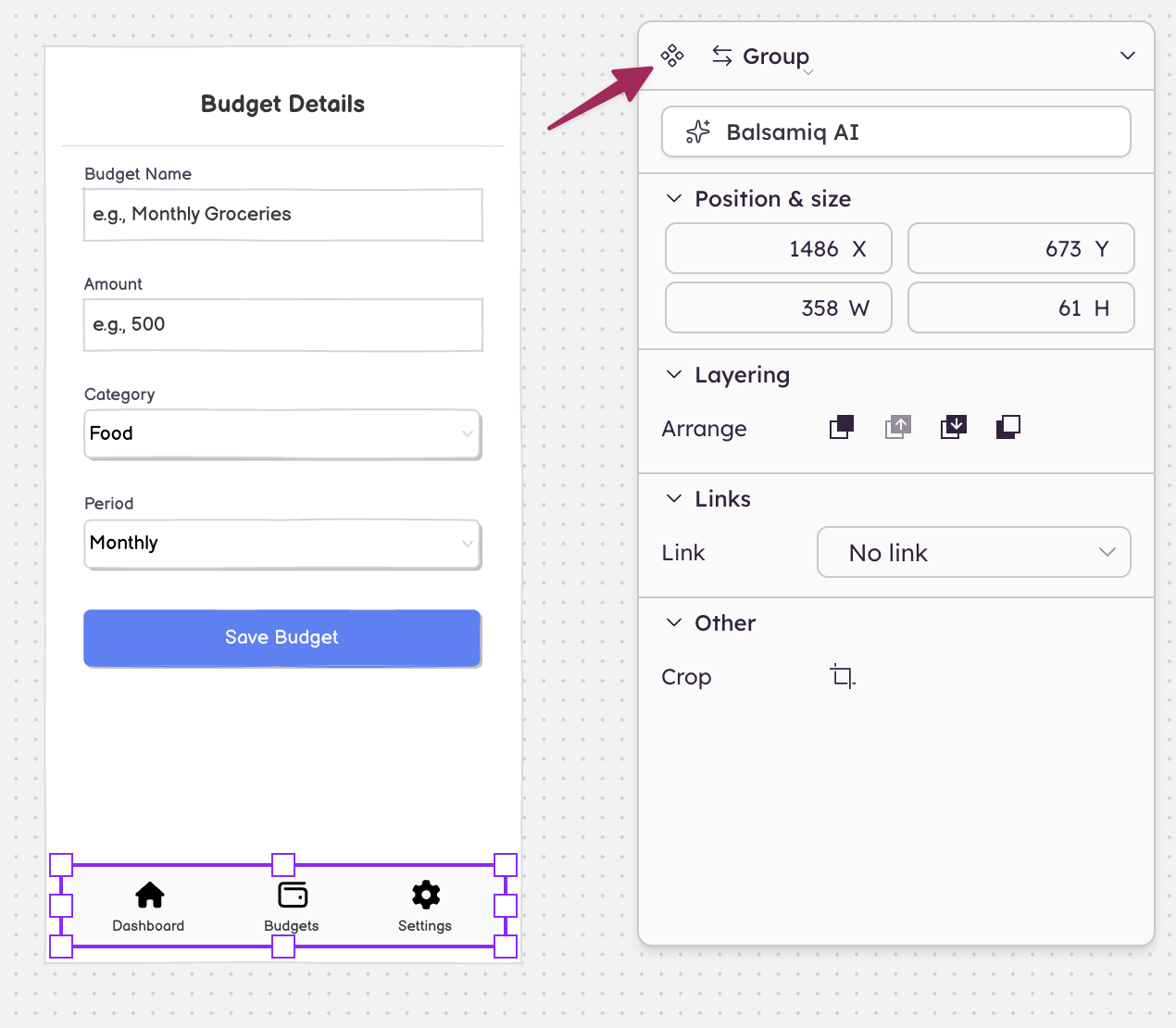
When you override a property on a component instance (such as changing the text or color), the component button turns green to indicate overrides are active. You can remove individual overrides from the component menu ("Remove [property] override").
You can read more about components on this page